
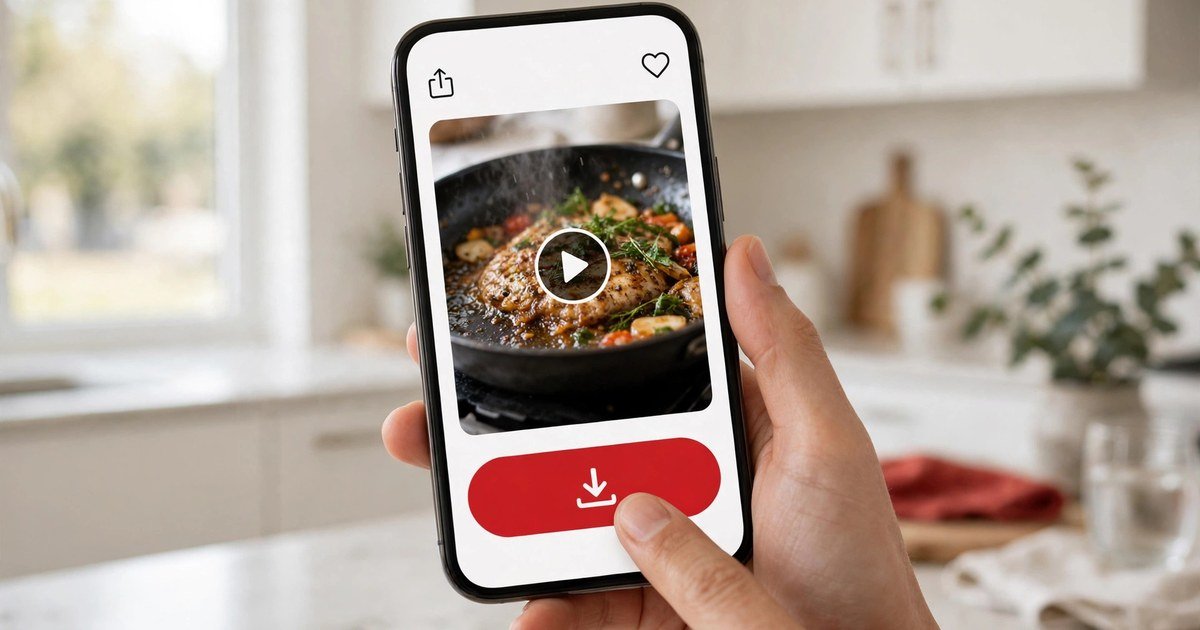
1. Why Saving Pinterest Videos on iPhone Is Different
To understand why downloading videos on iOS requires an extra step, it helps to look at Apple's operating system architecture. Apple designs iOS with strict application sandboxing. Unlike Android or desktop computers where apps can write directly to shared storage folders, iOS isolates each application into its own container. When you view a video inside the Pinterest app, the app streams the video data into a temporary cache that is inaccessible to other apps like Photos or iMovie.
Additionally, iOS separates web downloads into two distinct destinations: the system Files app (iCloud Drive or 'On My iPhone') and the Photos library (Camera Roll). When Safari downloads a media file, it defaults to storing it in the Downloads folder inside the Files app. To make the video visible in Instagram, TikTok, WhatsApp, or iMessage, you must transfer the downloaded file from Files into your Photos camera roll. Fortunately, modern iOS versions (iOS 13 through iOS 18+) make this two-step process simple once you know the exact icons to tap.
2. How to Copy the Pin Link from the Pinterest iOS App
The first step in saving any video pin is obtaining its unique web link from the Pinterest application:
- Open the Pin: Launch the official Pinterest app on your iPhone and locate the video pin you wish to download.
- Tap the Share Button: Look at the bottom right corner of the pin interface. You will see a small arrow pointing upward or a paper airplane share icon. Tap this icon to open iOS sharing options.
- Select "Copy Link": A drawer will slide up from the bottom of your screen displaying messaging contacts and action buttons. Tap the black-and-white icon labeled "Copy Link".
- Verify Clipboard: A subtle confirmation banner will appear at the top of the Pinterest app reading "Link copied!". The URL is now stored in your iPhone's system clipboard, usually formatted as a shortened
pin.itlink or a fullpinterest.com/pin/...URL.
3. Step-by-Step Guide: Download Using Safari
Once you have the link copied, you can use our web-based downloader directly inside Apple Safari:
- Open Safari: Switch out of Pinterest and open Apple Safari. Navigate to EZPinSaver.
- Paste the Link: Tap into the clean URL input bar at the top of the page. Tap again to bring up the iOS context menu and select "Paste" (or simply tap our quick-action "Paste" pill button).
- Hit the Download Button: Tap the large red "Download" button. Our backend resolves any
pin.itredirects, locates the underlying video streams on Pinterest's content delivery network, and renders the media preview card in about one second. - Select Your Video Quality: In the preview box, you will see the detected pin title, thumbnail, and resolution buttons (e.g., 720p HD or 540p). Tap the resolution you prefer.
- Confirm the Safari Download Prompt: Safari will immediately display an Apple system modal: "Do you want to download [pin-title].mp4?" Tap the blue "Download" button.
- Monitor Download Progress: Look at the Safari address bar. A small circular download icon with a downward-pointing arrow will animate as the video streams directly to your phone.
4. How to Save the Downloaded MP4 to Your Camera Roll (Photos App)
Now that the video file is stored on your iPhone, here is the critical step to move it into your native Photos library so it appears alongside your pictures:
- Tap the Downloads Icon: In Safari's address bar (bottom or top depending on your iOS settings), tap the circular Downloads icon.
- Open the Downloads List: A popover menu will appear listing your recent downloads. Tap the downloaded video file (named with the clean pin title).
- Access the iOS Share Sheet: The video will open in Apple's native media player. Tap the standard iOS Share button (the square with an arrow pointing upward) in the lower left corner.
- Tap "Save Video": In the share sheet menu, scroll down and tap the option labeled "Save Video" (accompanied by a small video camera icon).
- Verify in Photos: Close Safari and open your iPhone's Photos app. Tap the "Recents" album. Your Pinterest video is now safely stored in your Camera Roll with crystal-clear audio and original frame rate!
5. How to Fix "File Saved to Files Instead of Photos"
A common question from iPhone users is: "I downloaded the video, but it's only in my Files app and not in my Camera Roll. How do I fix it?"
This is standard iOS behavior for any file downloaded through a web browser. If you already closed Safari without tapping "Save Video", don't panic—your video is not lost. Here is how to relocate it:
- Open the built-in Files app on your iPhone (the blue folder icon).
- Tap the Browse tab at the bottom right, then tap Downloads (or navigate to iCloud Drive > Downloads or On My iPhone > Downloads).
- Find your downloaded MP4 video file. You can easily spot it because EZPinSaver names it with the readable pin title.
- Long-press the video thumbnail and tap Share, then scroll down and tap Save Video. The file immediately copies into your Camera Roll.
6. Video Quality on iPhone (Understanding Available Resolutions on Retina Screens)
Apple's Super Retina XDR displays feature high pixel densities (over 450 pixels per inch). When you view video clips on modern OLED iPhone screens, video compression artifacts and low resolutions become immediately obvious.
When you download videos through EZPinSaver, our tool inspects Pinterest's video manifest and prioritizes the highest available resolution—up to 720p HD (the largest MP4 Pinterest stores for that pin). We present that exact native stream. We never apply fake upscaling algorithms that introduce digital distortion. On iPhone screens, original files deliver crisp text, vibrant colors, and smooth playback.
7. Common iPhone Download Errors & How to Fix Them
If you experience any difficulties while downloading Pinterest videos on iOS, review these common solutions:
- Safari Blocks Pop-ups: If tapping the download button does nothing, verify that Safari's download manager is active. Go to iPhone Settings > Safari > Downloads and ensure it is set to either "iCloud Drive" or "On My iPhone".
- Private Secret Boards: If our tool displays an error stating "Could not extract video", verify that the pin is not located on a private secret board. Pinterest blocks all external access to private pins.
- Short Link Timeout: If a shortened
pin.itlink fails to resolve due to network latency, open the link once in Safari so it expands into the fullpinterest.com/pin/...URL, then copy and paste that expanded address. - Low Storage Space: If the iOS download progress circle stalls, check that your iPhone has sufficient local storage available in Settings > General > iPhone Storage.